
How to publish Dashboards
1. What do we mean by publishing a dashboard?
Publishing a dashboard involves making it accessible in viewing mode to specific users or groups within your organization. By publishing dashboards to specific users or groups, you can control who can view and interact with the data and insights contained within each dashboard.
For example, a Sales Performance dashboard can be published to the Sales team, ensuring they have access to the most relevant metrics, while other departments do not see unnecessary information.
2. Why do you need to publish dashboards to users?
Admin users can access Dashboards within the Reports menu, where dashboards can be created and edited. However, collaborator users can only access and view dashboards through the Experience app part of the portal. Dashboards are only accessible in that section when they are published.
Managing access by (un)publishing dashboards offers several key benefits:
Targeted information
Ensures that users see only the data and insights relevant to their role or team.
Enhanced efficiency
Helps users focus on actionable insights without being distracted by unrelated information.
Secure access
Restricts access to sensitive information to authorized users or groups only.
Streamlined collaboration
By sharing dashboards with specific teams, you foster collaboration around shared data insights.
Publishing dashboards is particularly important in organizations where different teams need tailored views of the data.
3. How to publish a dashboard
- Open the dashboard in edit mode:
- Check that you are viewing the dashboard from the Admin side, so under Reporting > Dashboard.
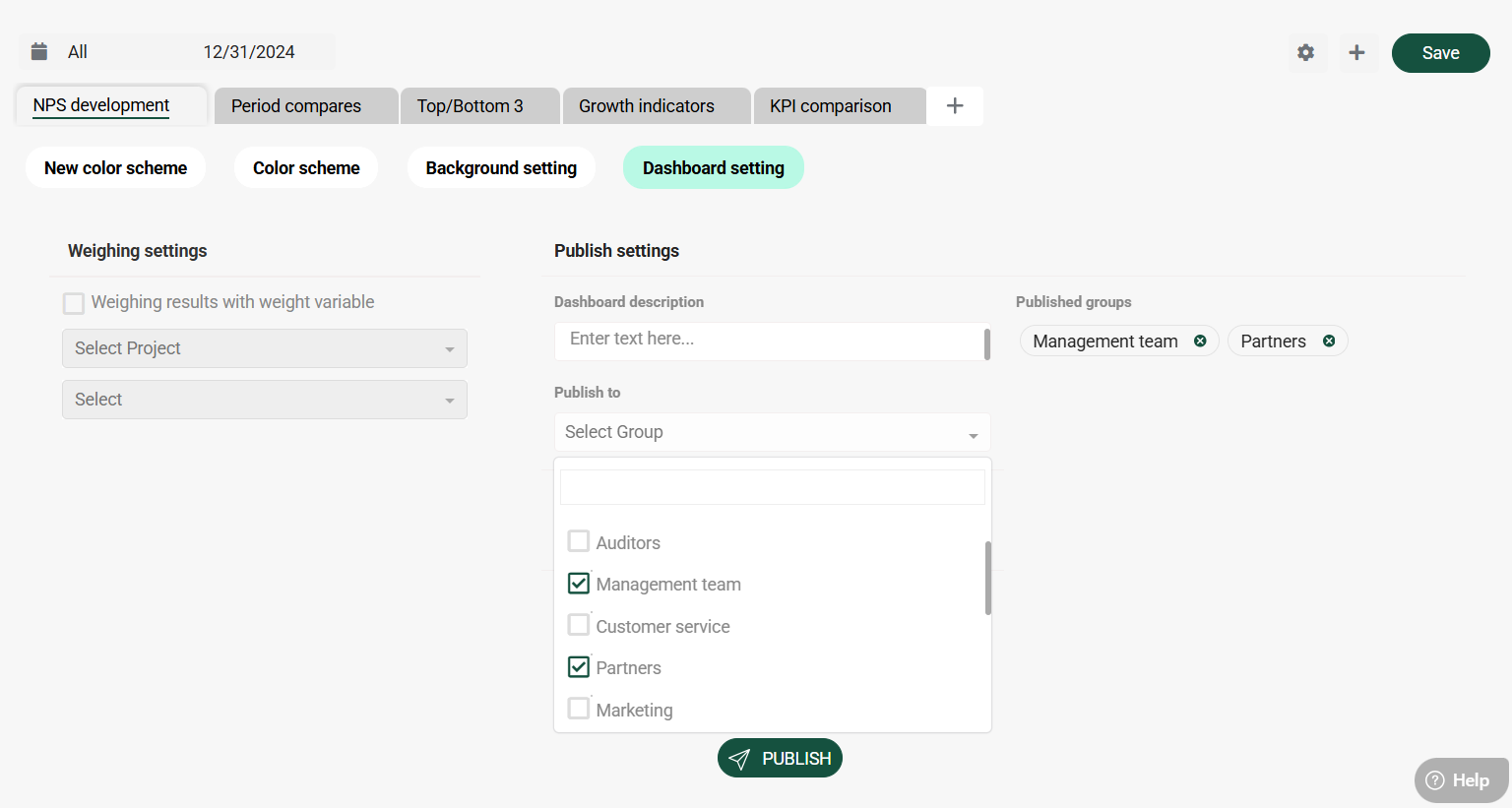
- Click the Edit icon (pencil) to access the dashboard in Edit mode, and then click the Settings icon (gear).
- Navigate to the publication settings:
- In the settings menu, click the Dashboard setting tab.
- This section allows you to specify which users or groups can access the dashboard.
- Select groups:
- Use the Publish to dropdown menu to select the group(s) you wish to give access to.
- If you are assigning the dashboard to a group, all users within the group will gain access.
- Save your changes:
- After (un)selecting the desired groups, click Publish to confirm your settings. You will see the Groups appear as tags under the Published Groups section.
- Click Save on the dashboard level as well to ensure your updated settings get applied. The dashboard is now published and accessible to the specified audience.
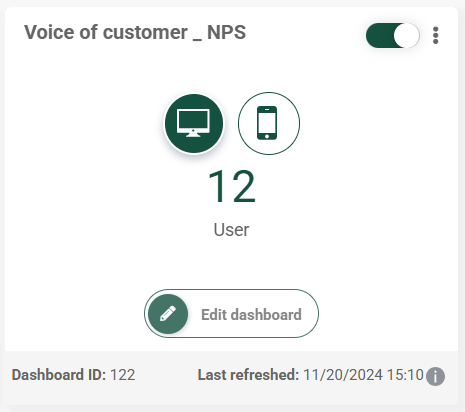
- The dashboard overview page will indicate the amount of users that the dashboard is published to for easy reference.
4. Best practices when publishing dashboards
- Align dashboards with user roles
Publish dashboards only to users or groups who actually need the information, to ensure your users can easily focus on the data that is relevant to them.
- Use groups for easier management
Assign dashboards to groups instead of individual users whenever possible. This simplifies access management and ensures that new members of a group automatically gain access.
- Communicate when publishing dashboards
Notify users when a dashboard is published or updated so they can start using it immediately. Provide a quick overview or training for new dashboards if they involve complex data or unfamiliar metrics.
- Verify the activity status of the dashboard
Each dashboard has an activity switch. Please note that deactivated dashboards will not be visible to your users, regardless of their publication status.
By carefully managing the publication of dashboards, you can ensure that your organization gets the most out of its data, empowering users with insights while maintaining focus and security.