
Add/Edit a Portal Monitor alert
The Portal Monitor provides extensive flexibility to identify areas of possible failures in important processes. From identifying when data isn't imported to identifying when expected invites aren't sent out, the Portal Monitor leverages your usage to provide with you with the accurate failures.
Before you create a new alert, it's important to understand what you wish to achieve from the alert. Do remember, that the alert's ability to convey the exact failure point depends on the configuration of the alert. A general thumb rule is to identify your current usage of the system to determine a quality configuration of an alert. You can currently create an alert when data is imported into the system, when source data is mapped into a database and when invites are sent out to survey participants.
Once you've decided what type of alert you wish to create, follow the below steps to have your ideal configuration.
Add a new alert
Navigate to the Portal Monitor in the Management Menu, click on "Configure" and then "Add" to start creating a new alert.

Fill in your Alert name. A name suggestive to identify the alert would be helpful.
Select the Alert group - Import Source or Projects. The Import Source group allows you to set alerts in the source for all file imports in the Import Source overall or for specific file imports in the source. The Projects group allows you to set the alerts in a project for when the source data is mapped into the datanase or when invites are sent to survey participants.
Below are the trigger configuration details for all types of alerts.
Import Source Triggers
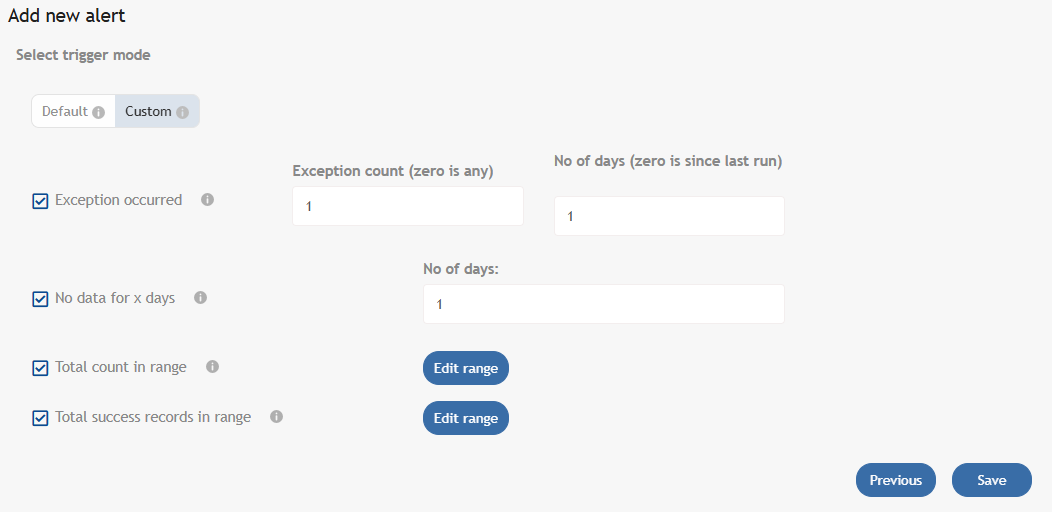
The Default trigger configuration allows you to create a alert trigger on exceptions and no data for import sources in the last 24 hours. The Cusom trigger configuration allows you to customise the configuration with the below possibilities.
Trigger | When It Fires |
|---|---|
Exception Occurred | When a configured number of exceptions occur during import within a set number of days. Defaults to 1 if Count or Days is left empty or set to 0. |
No Data for X Days | When import runs occur but no records are processed within the defined number of days. |
Total Count in Range | When total records processed (successful + failed + skipped) in any import run in the last day fall within the configured range. |
Total Success Records in Range | When successfully imported records in a run within the last day fall within the defined range. |
File Source Triggers
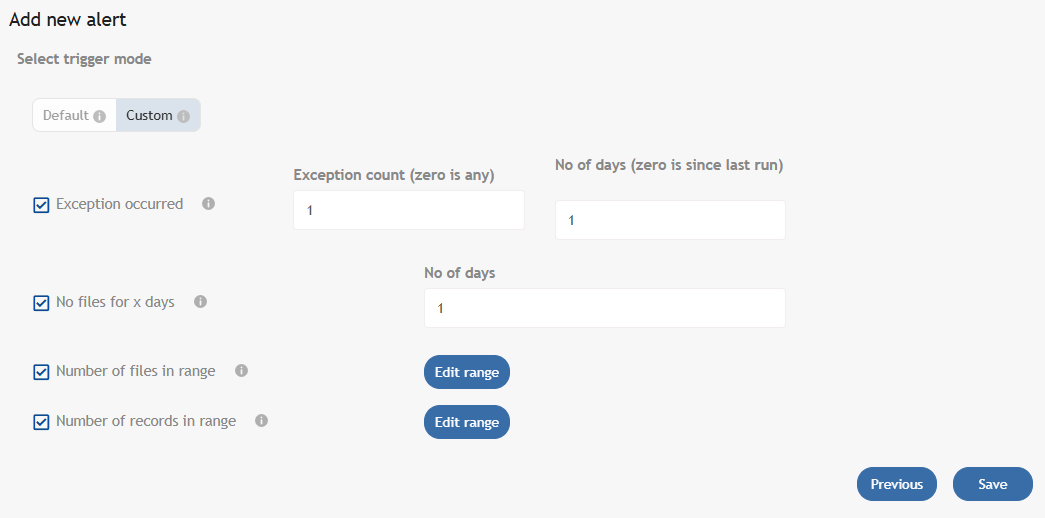
The Default trigger configuration allows you to create a alert trigger on exceptions and no files for file sources in the last 24 hours. The Cusom trigger configuration allows you to customise the configuration with the below possibilities.
Trigger | When It Fires |
|---|---|
Exception Occurred | When a configured number of exceptions occur in the file import process. Defaults to Count = 1, Days = 1 if left empty. |
No files for X Days | When no incoming files are registered for the selected file source within X days. Default = 1 day. |
Number of Files in Range | When the number of files received in the last day falls within the defined range. |
Number of Records in Range | When the number of records detected in a file within the last day falls within the defined range. |
Project Mapping Triggers
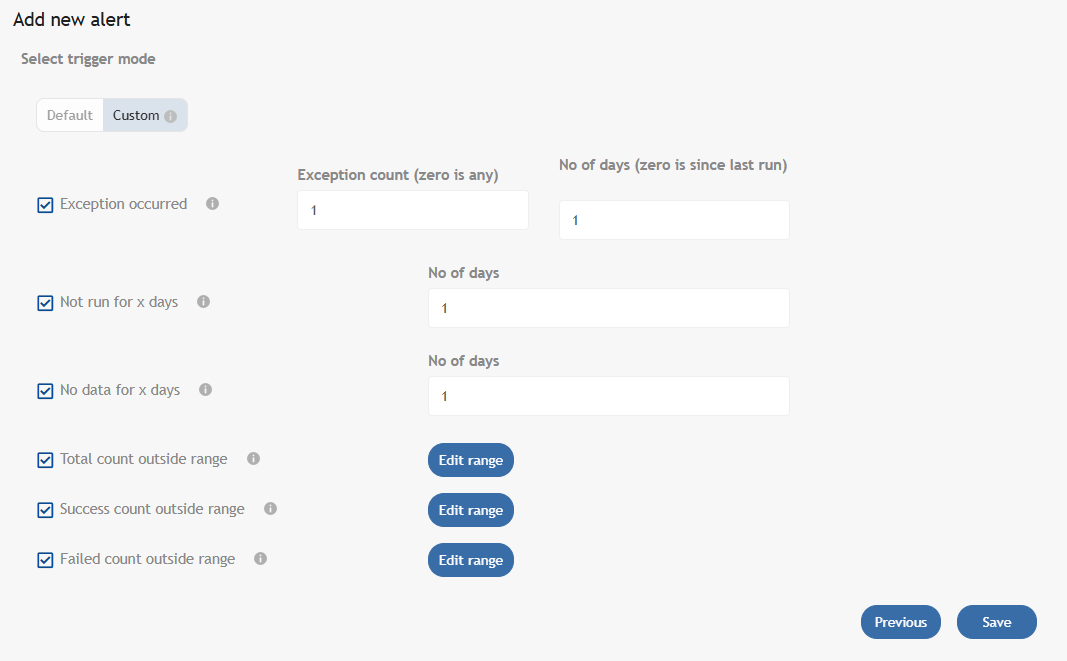
The Default trigger configuration allows you to create a alert trigger on exceptions and no new mapping data for research in the last 24 hours. The Cusom trigger configuration allows you to customise the configuration with the below possibilities.
Trigger | When It Fires |
|---|---|
Exception Occurred | When exceptions occur during the project mapping process within the configured days. |
Not Run for X Days | When no mapping runs occur within the defined number of days. Default = 1 day. |
No Data for X Days | When mapping runs occur but no records are processed within the defined days. |
Total Count outside Range | When total records processed in a mapping run fall outside the defined range. |
Success Count outside Range | When successfully mapped records fall outside the defined range. |
Failed Count outside Range | When failed mapped records fall outside the defined range. |
Scheduler Triggers
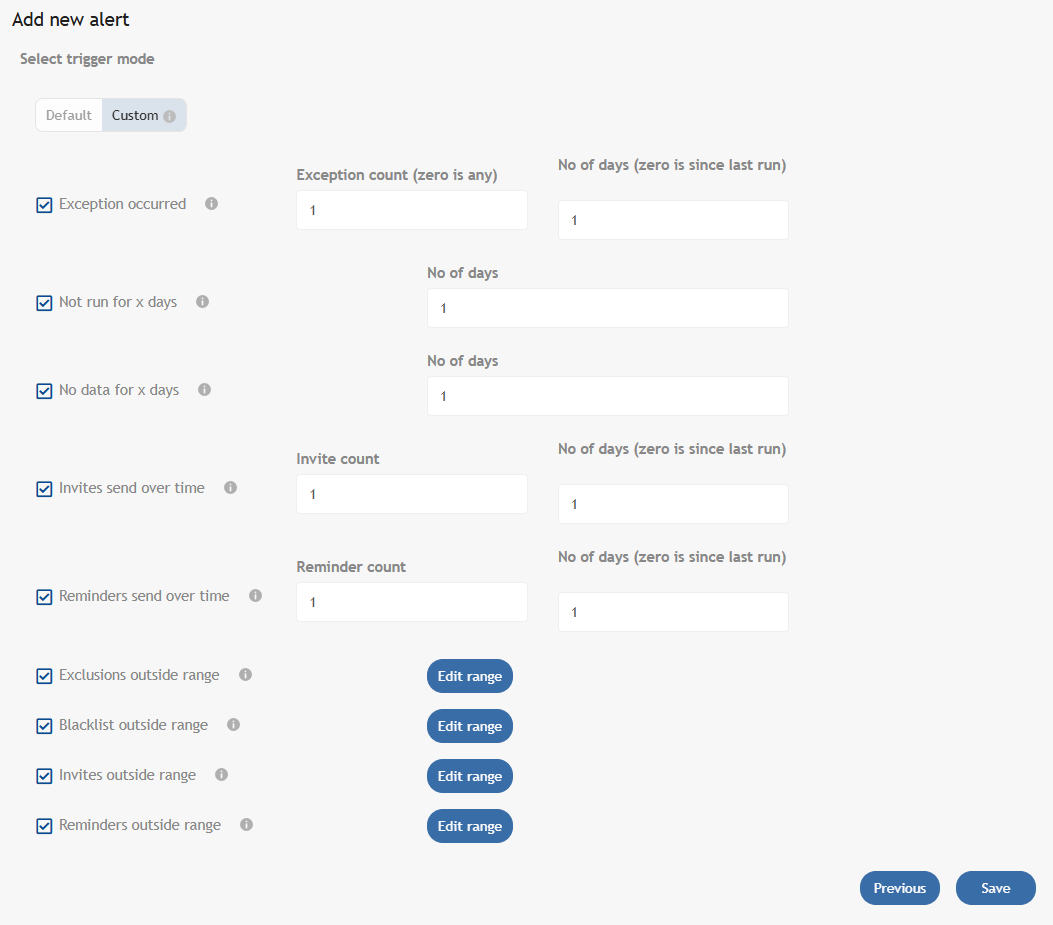
The Default trigger configuration allows you to create a alert trigger on exceptions and no invites for schedulers in the last 24 hours. The Cusom trigger configuration allows you to customise the configuration with the below possibilities.
Trigger | When It Fires |
|---|---|
Exception Occurred | When exceptions occur during the scheduler process within the configured days. |
Not Run for X Days | When no scheduler runs occur within X days. Default = 1 day. |
No Data for X Days | When scheduler runs occur but no records are processed. |
Invites send over time | When number of invites are not sent over a period of days |
Reminders send over time | When number of reminders are not sent over a period of days |
Exclusions outside Range | When excluded records in a scheduler run fall outside the defined range. |
Blacklist outside Range | When blacklisted records in a scheduler run fall outside the defined range. |
Invites outside Range | When invitations sent in a scheduler run fall outside the defined range. |
Reminders outside Range | When reminder emails sent in a scheduler run fall outside the defined range. |
Once an alert is saved, you can edit the alert and select the notification message & recipients.
Editing an Alert
Navigate to the Portal Monitor in the Management Menu, click on "Configure" and then click on any existing alert in the list to open the Edit Alert view.
General Tab
Here you can configure the basic details for your alert.
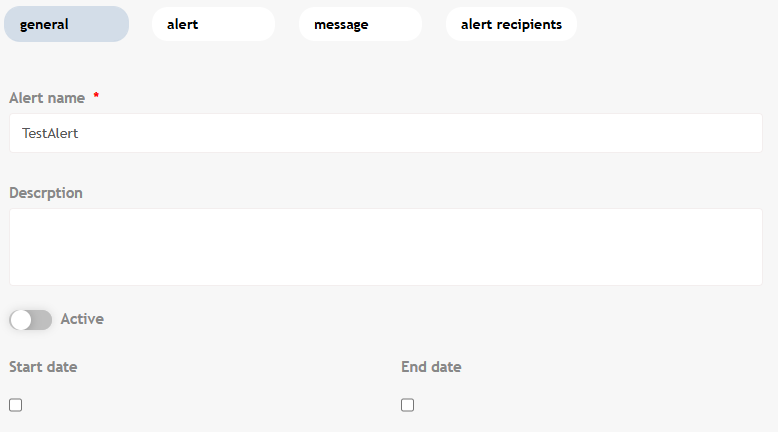
Field | Description |
|---|---|
Alert Name | A descriptive name to identify the alert |
Start Date | The date from which the alert becomes active |
End Date | The date on which the alert expires |
Active Status | Toggle to enable or disable the alert |
Alert Tab
Change the configurations of the alert here. You can change the alert group, the selections of the sources/projects based on the alert group and the relevant alert type as well.
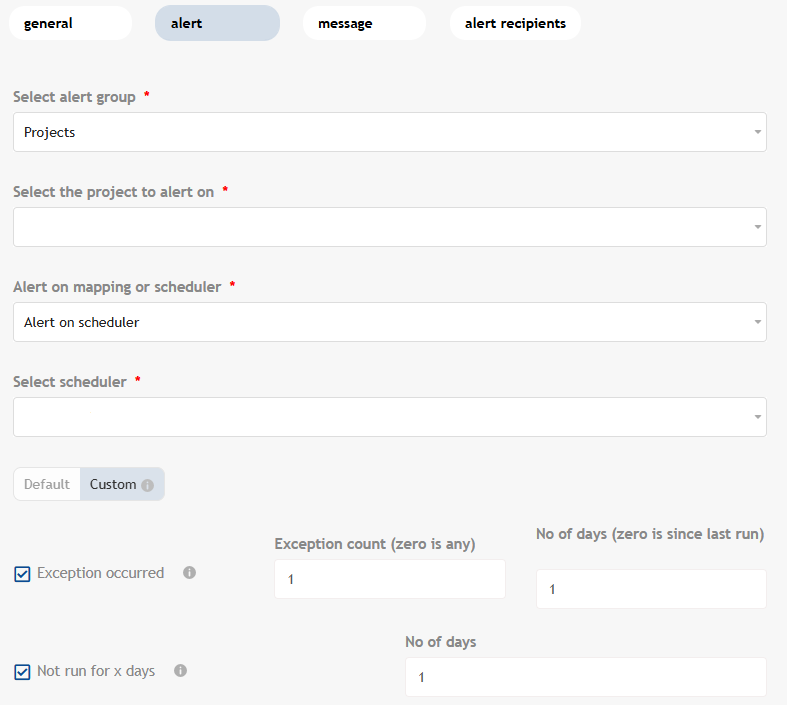
You can change the trigger configuration for the alert type as well.
Message Tab
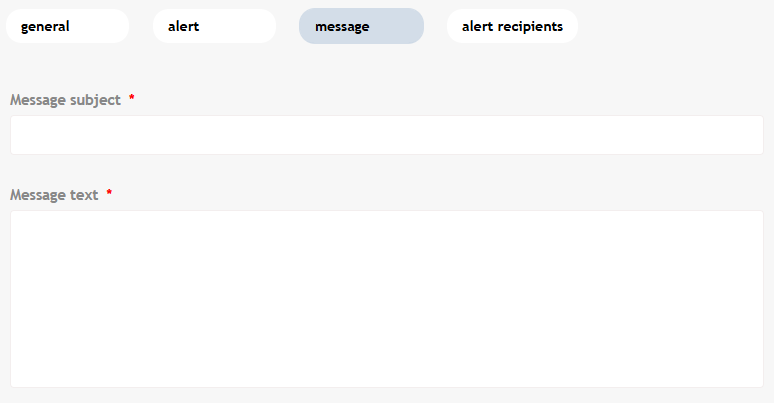
Message Subject is the subject that will be used for the notification message that the recipients receive. In case of a User Notification recipient type, the Message Subject will be seen as the User Notification's subject. In case of a User e-mail or External e-mail, the Message Subject will be the mail subject.
Message Text is the content of the notification message that the recipients receive. In case of a User Notification recipient type, the Message text will be seen as the User Notification's text. In case of a User e-mail or External e-mail, the Message text will be the mail content.
Alert Recipients Tab
You can add a new recipient for this alert or edit an existing recipient.

In the add/edit recipient pop-up, you can set the recipient name, the recipient type and the portal user/external email depending on the recipient type.
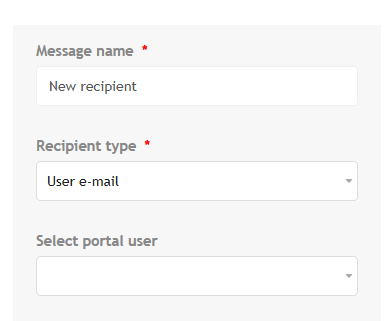
Recipient Type | Description |
|---|---|
User Notification | Sends a notification within the portal to a selected portal user. |
User Email | Sends an alert email to the email address of a selected portal user. |
External Email | Sends an alert email to one or more external email addresses. Separate multiple addresses with a semicolon ( |
Once you've set the right recipient, click on the Save button to update/add your recipient.
Once all configuration steps are complete in all the tabs, confirm your settings and click on the Save button to save your updated alert.