
Communication settings
1. What are communication settings?
Communication settings in your portal determine the email address and sender details used for portal communication such as user activation and password resets, or for data collection purposes such as survey invitations, reports, and triggered notifications. By default, the sender email follows the format portal.<portalname>@cx.management.
However, these settings can be customized to align with your company’s branding. This customization includes changing the display name, setting a reply-to address, or even using a fully branded email address tied to your company's domain.
2. Why customize communication settings?
Customizing your communication settings provides several key benefits:
Professionalism
Emails appear as though they originate directly from your company, building trust and credibility.
Personalization
Recipients can see your company name as the sender, which enhances brand recognition.
Response
Respondents are more likely to respond to an email with a recognizable address than to an email address they do not know, leading to a higher response percentage of your surveys.
3. How to customize communication settings
Set up a custom sender email
If you wish to use an email address like info@yourcompany.com as the sender, follow these steps:
- Add the email address in the communication settings of the portal
- Navigate to the Communication settings tab in the Portal section of your Management menu.
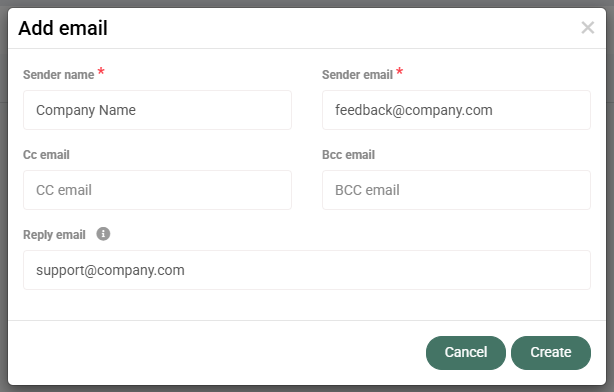
- In the portal, click Add Email at the top-right corner.
- Enter your desired sender details and press Create.
- Navigate to the Communication settings tab in the Portal section of your Management menu.
- Download the DKIM configuration file
- Download the configuration file through the button behind the newly created domain. The file will be downloaded directly into the allocated download folder of your device.
- Set up DKIM settings
- Provide the configuration file to your domain’s system administrator.
- Ensure they add the provided DKIM information to your DNS settings.
- Verify your domain
- Once your DNS settings are updated, return to the portal and click the Verify button.
- If successful, your email domain will display the green ‘Verified’ status.
- Activate the email
- In the Active/Inactive column, toggle the email address to Active to enable its use. The cx.management domain cannot be (de)activated.
- Project setup
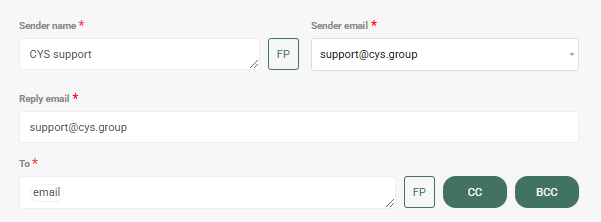
- As soon as the new email address has been verified and activated, this option becomes available in various areas in the portal. It will be a new option in the dropdown of for instance schedulers, triggers or reporting emails. This setup can be applied to individual areas.
- As soon as the new email address has been verified and activated, this option becomes available in various areas in the portal. It will be a new option in the dropdown of for instance schedulers, triggers or reporting emails. This setup can be applied to individual areas.
Editing existing communication settings
- Navigate to the Communication settings tab in the Portal section of your Management menu.
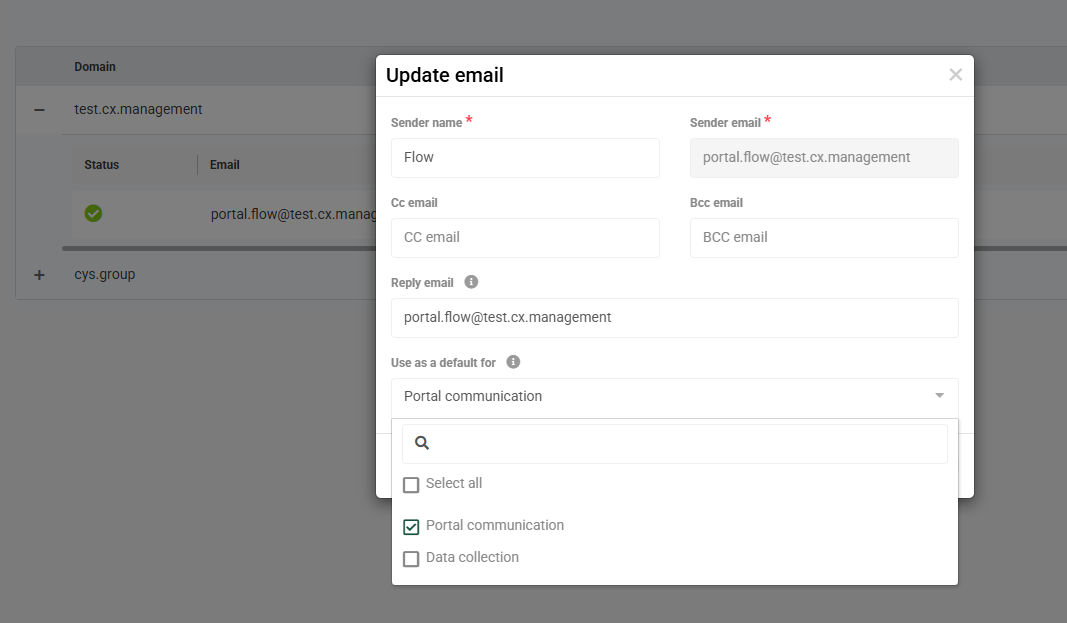
- Locate the domain you wish to edit and click the pencil icon in the Action column to edit the Sender Name or Reply-to email.
- Check which email address should be used as the sender per default for portal communication and/or data collection purposes.
- Save the changes to ensure they take effect.
4. Best practices for setting up communication settings
- Use recognizable display names
Choose a sender name that recipients associate with your brand for higher open rates.
- Check SPF and DKIM compliance
To minimize spam issues, add include:sendgrid.net to your existing SPF record in the DNS settings for a seamless email delivery.
- Keep the reply email address updated
Ensure the reply-to address directs responses to an active and monitored inbox.
- Regular maintenance
Periodically review and update communication settings to reflect organizational changes.
By customizing your communication settings, you can deliver a branded, seamless experience to recipients while maintaining professional and reliable communication.